
UpdateSWH: check and update archival of a repository
Version 9.0 and higher
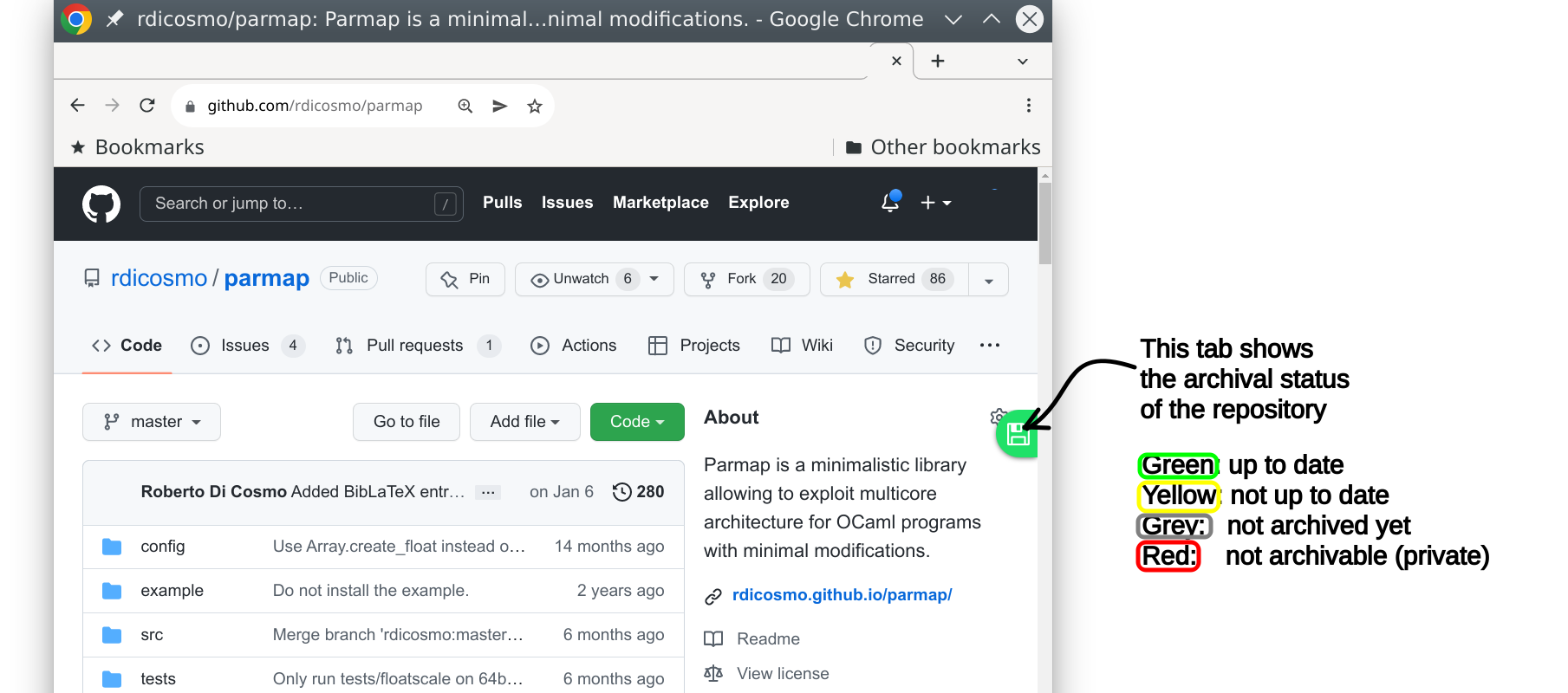
This handy browser extension allows you to seamlessly check if a repository that you are browsing is archived and up to date in Software Heritage.
Getting the extension
You can find and install the Updateswh extension by clicking on the image of the browser you are interested in among the following:



First install: enabling forges
When the extension is installed for the first time, the options page opens automatically. You will see a list of all supported forges, each with an on/off slider: GitHub, GitLab.com, Bitbucket, Codeberg, and several other well-known GitLab and Gitea instances. By default everything is off — the extension only requires access to archive.softwareheritage.org, nothing else. Click « Enable all forges » to turn them on in one go, or flip individual sliders to pick only the platforms you use. You can come back at any time and toggle any forge on or off; the browser remembers your choices. 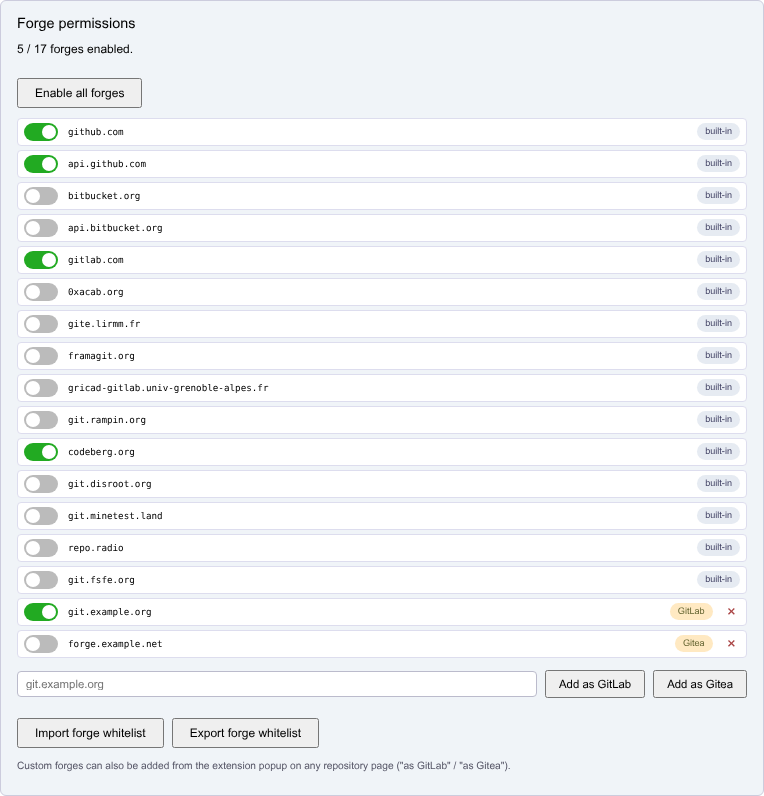
Understanding the color code
The color-coded button on the right edge of the browser window carries information about archival status and lets you trigger the appropriate action. Good news first, then states that call for your attention, then errors:
 green — up to date. The archived copy matches the latest state of the repository. Clicking on the button opens a tab on the corresponding page of the archive (very practical if you want to get a SWHID permalink).
-
 lightgreen — archival in progress (new in 9.0). A visit is currently running for this repository — either because you just clicked save, or because someone else triggered one recently. Clicking the button opens the save queue where you can track progress; check back in a few minutes for the final state.
  yellow — out of date. The archive has a copy but it is older than the latest commit on the forge. Clicking triggers a save-code-now request to update it; right-clicking opens the page of the last successful archival.
 grey — not archived. The archive has no record of this repository (at least not from this origin). Clicking triggers a save-code-now request to archive it for the first time.
 brown — last archival attempt failed. The archive has an entry but the last save attempt did not complete successfully; there may be technical issues (private repo moved public, unusual git refs, loader bugs) that prevent archival at the moment. Clicking triggers a new save-code-now request; right-clicking opens the failed visit page.
 orange — API quota exhausted. You have used up your quota of API calls on either the SWH API or the forge API. Wait a bit before trying again, or set an access token to raise the rate limit (see below).
 blue — SWH API unreachable (new in 9.0). The extension could not parse the response from the Software Heritage API — typically because the archive is behind a bot-challenge page (Anubis, Cloudflare, etc.) or a transient network issue. Clicking opens archive.softwareheritage.org in a new tab; once you have visited it in your browser (so the challenge is solved once), reload the repository page and the button should turn back to its normal color.
 red — forge API error. The request to the code hosting platform did not succeed. This usually means:
- in most of the cases, the repository you are visiting is private, and hence cannot be archived,
- or, more rarely, you tripped on an error in the extension: you may enable debug mode in the options panel, and report the issue on the extension development repository.
 dashed outline — permission missing. The extension needs permission to access this forge. Clicking the button opens the options page where you can enable the slider. This appears on a known forge whose slider is off — a built-in you have not enabled, or a custom one whose permission has been revoked.
Tooltips on the button recall all this, so you do not need to memorize it, and they include additional details (date of last modifications on the forge, date of the latest archival visit).
What happens when you click a yellow, grey or brown button
The extension sends a save-code-now request to Software Heritage and the button turns lightgreen while the visit is being scheduled and run. Once the archival has completed successfully, it will turn green; if something goes wrong during the archival it will turn brown. Both transitions may take a few minutes — the archive works asynchronously. The lightgreen button remains clickable: click it to open the save queue and follow your request through to completion.
Supported code hosting platforms
The extension supports out of the box BitBucket, GitHub, GitLab.com, and a number of well-known GitLab and Gitea instances including Codeberg.org.
You can add any other GitLab or Gitea instance in one of two ways:
- From the options page, type the domain (e.g.
git.example.org) in the input field below the forge list and click « Add as GitLab » or « Add as Gitea ». The browser prompts you to grant access; on confirmation the new row shows up in the list with its slider already on. - From the page itself, browse to the instance, click the extension icon in the browser toolbar, and select « as GitLab » or « as Gitea ». The extension saves the current hostname, opens the options page, and the slider for the new row is ready for you to enable.
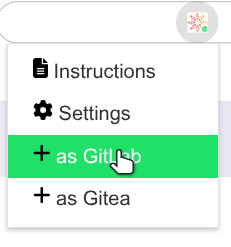
Custom domains you have added appear as extra rows on the options page with their own slider and a × button to remove them. Revoking a custom domain removes its permission and stops the extension from injecting on it immediately — no browser restart needed.
Support for other code hosting platforms and technologies may be added in the future.
Sharing your configuration: import / export
New in 9.0. The options page exposes two buttons — « Export forge whitelist » saves your custom forges to a JSON file you can share with colleagues; « Import forge whitelist » reads such a file, previews the domains it would add, and asks you to confirm with a single « Grant and import » click — one browser permission prompt covers the whole batch. This is the fastest way to roll out a common set of internal GitLab/Gitea instances across a team.
Exporting on an empty list produces a self-documenting template with an _example showing the expected shape, so colleagues who want to hand-edit the JSON before importing can do so without looking up the format.
Time delays
When a change takes place in a repository (e.g. a new commit is pushed) or in the Software Heritage archive (e.g. a (new version of a) repository has been ingested in the archive), it may take some time for the event to show up in the API. On the Software Heritage side, it is usually a matter of a few minutes, but on some code hosting platforms we have seen delays in the order of hours.
To determine the right color to show, the extension calls the code hosting API to get the date of last update of a repository, and the Software Heritage API to get the date of the latest archival, so the color shown does reflect exactly what is exposed by these APIs, but this may not be the actual status for a little while.
Choosing your options
The option panel can be opened by clicking on the extension icon in the browser bar (if it is not in the bar, look for it in the list of active extensions), then selecting Settings.
The options page has the following sections:
Forge permissions
At the top of the options page, each built-in and custom forge is shown as a row with:
- an on/off slider: click to grant or revoke access to that specific forge. The slider reflects the permission actually stored in your browser, so it stays in sync if you change permissions from the browser’s native extensions panel.
- the domain name,
- a badge indicating the type (built-in, GitLab, or Gitea),
- for custom forges only, a × button to remove the entry entirely.
Above the list, the « Enable all forges » button turns on every slider at once (built-in and custom). Directly below the list, an input field plus two buttons (« Add as GitLab », « Add as Gitea ») let you add a custom forge by typing its domain. Below that, Import / Export handle bulk transfer of the custom-forge list as JSON.
General options
- Show save request: if selected, this tells the extension to open up a new tab to inspect the save request whenever you issue one by clicking on a yellow, grey or brown button. (You can access the same page anyway by clicking on the button when it turns lightgreen.)
- SWH Debug mode: if selected, detailed information on what the extension does is logged in the console of the browser (usually accessible via F12); this is useful for debugging, do not turn it on unless you need it.
- GitHub API access token: this text area allows you to paste in a GitHub API access token, useful if you use up the standard GitHub API request quota (which is quite low: 60 requests every 30 minutes only). If your button starts getting orange after a while, this is your case: please follow the GitHub instruction and create a new token (do not grant it any rights, the extension does not need them!) and paste it here.
- SWH API access token: this text area allows you to paste in your SWH API access token, useful if you use up the standard API request quota. If your button starts getting orange after a while, this is your case: please login or register on the Software Heritage archive first, then create an access token for your extension and paste it here.
Permissions: what the extension accesses and why
The extension does not require access to all websites. Here is what it needs and why:
- archive.softwareheritage.org (always required): to query the Software Heritage API and check archival status.
- Built-in forge domains (optional, toggle per forge): GitHub, GitLab.com, Bitbucket, Codeberg, and a few well-known GitLab and Gitea instances. The extension needs access to their APIs to retrieve repository metadata (last update date). Enable them individually with the per-row sliders, or all at once with the « Enable all forges » button.
- Custom forge domains (optional, granted per domain): when you add a self-hosted GitLab or Gitea instance — either from the options page or from the popup — the browser prompts you to grant access to that specific domain only.
You can review and revoke any granted permission at any time from the options page (slide the forge off, or click × on a custom entry) or from your browser’s extension permissions panel.
The extension tags every request it makes to the Software Heritage API with identifying headers (Accept: application/json, X-UpdateSWH-Client: updateSWH/<version>, and a User-Agent carrying the extension name and version). This lets the Software Heritage infrastructure recognise legitimate extension traffic and route it through bot-protection layers without false positives.
The extension is Open Source: you can inspect the source code to verify that it only accesses forge and Software Heritage APIs.
What changed in 9.0
- Per-forge sliders replace the colored-dot list. Each forge is now turned on or off individually with one click; « Enable all forges » is the new name of the bulk button and it covers custom forges too, not only built-ins.
- Custom forges can be added either from the options page (type a domain and click « Add as GitLab » / « Add as Gitea ») or from the popup on any repository page. The old text areas on the options page are gone; existing custom entries are migrated automatically on first load.
- Import / export a JSON whitelist of custom forges, for sharing configuration across a team.
- New blue button when the Software Heritage API is unreachable (bot-challenge page, transient network issue). Replaces the silent-grey misreport that looked like a not-archived repository.
- New lightgreen button when an archival visit is currently in flight — previously such visits were reported as failed (brown) until they completed.
- Identifying API headers so Software Heritage can allow-list extension traffic precisely.
Contributing
This extension is Open Source, distributed under the terms of the MIT license. The source code is available in the development repository. Contributions are welcome.